
I recently upgraded to a Macbook Pro M2 and unexpectedly encountered a headache: how to connect two or more monitors using a single Thunderbolt (Type-C) port. I initially thought it would be simpler to find a hub to convert two HDMI or DisplayPort connections into a single Type-C port, but it turns out that's not the case.
Since the Macbook Pro M1/M2 doesn't support multiple displays with a single port, a hub can't solve this problem. The simplest workaround is to connect the Mac using two Type-C ports, but this isn't very convenient for switching between multiple computers. After buying many different docking systems and encountering numerous issues, I've summarized my experiences in this article to share with everyone.
Problem Description
The goal is to connect two or more monitors via a single Type-C port, allowing three monitors (including the Macbook's own display) to show different content. This would allow switching between multiple Macs and PCs' displays simply by switching the Type-C connection.
Solution
Incorrect Solution 1: A Standard Hub
The simplest and most direct idea is to buy a hub or dock to connect multiple display ports, and then connect the hub to the computer. This works perfectly fine on a PC, but the Macbook M1/M2 ports do not support multiple displays. Therefore, all hubs on the market can only support external displays and the Macbook displaying the same content.
There is one exception: some hubs have dual Type-C ports, meaning they can connect to two Type-C ports simultaneously. However, this solution is rather redundant. If it already has two ports, why not just use those two ports to connect two monitors? Moreover, this solution cannot be used on PCs, since PCs don't have two close-proximity Type-C ports.
Incorrect Solution 2: Requires a Driver-based Dock System
There's another type of dock available online that only requires one Type-C port to connect multiple monitors. Of course, it's relatively more expensive. I naturally tried this solution as well.
This solution requires you to install a software called DisplayLink, which supports both Mac and PC. It will automatically launch when connected to the dock, thus achieving multi-screen display. My understanding is that this solves the problem through software.
At first, I was pleasantly surprised that it worked, but as I used it, I encountered some problems. The most prominent one was lag. Initially, I thought it was due to insufficient memory or the CPU being unable to handle the processing (after all, it's a software implementation), but when I switched to a newer Macbook, the lag persisted, making me realize that this seemed to be an unsolvable flaw. After testing, I believe the lag is because the bandwidth of a standard Type-C port cannot support output from two monitors.
A normal Type-C port supports a maximum speed of 10Gb/s, but an HDMI port has a speed of 30Gb/s, and DisplayPort has an even higher speed. This results in severe stuttering when opening images and videos.
Of course, I learned a lot while trying this solution, which paved the way for me to find the real solution.
Correct solution: Thunderbolt 3/4 output interface
After extensive research and study, we identified the key bottleneck and found this solution. Surprisingly, only Anker offers this Thunderbolt Dock on the market. Priced around 300 RMB, it's significantly more expensive than other docks. Reluctantly, we bought it, and the problem was solved!
I bought the Anker 777, but the Anker 577 also works. It doesn't require the DislayLink driver, has no lag, and doesn't use much memory or CPU; it feels completely native (I don't know how it achieves this). Below is a comparison of several of their products.
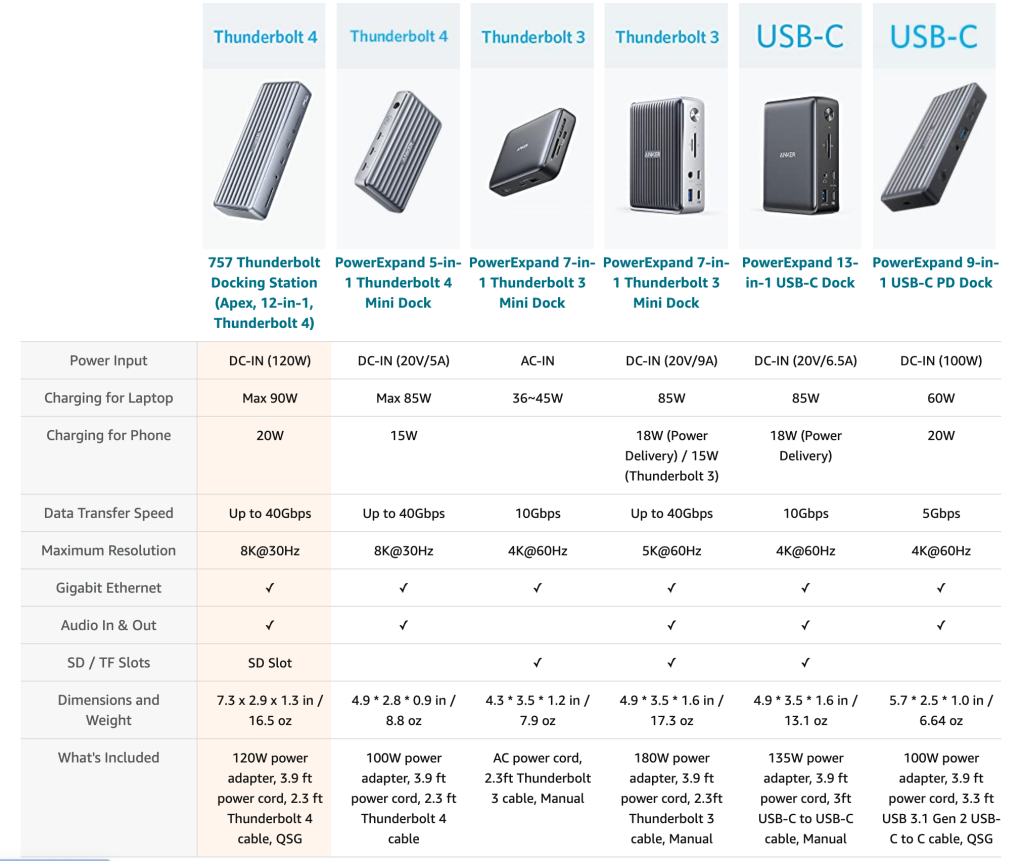

Below is the Amazon purchase link. Feel free to check it out if you're interested, and please feel free to ask questions and discuss!
Anker Dock System 777: https://amzn.to/3HhcD4r
Anker Dock System 577:https://amzn.to/3jlHzZf
This siteOriginal articleAll follow "Attribution-NonCommercial-ShareAlike 4.0 License (CC BY-NC-SA 4.0)Please retain the following annotations when sharing or adapting:
Original author:Jake Tao,source:"Solutions for connecting multiple displays to Macbook M1/M2"



Comment list (9 items)
support!!
It's clear the blogger put some thought into this article. I've read similar articles before, but this one is particularly convincing. Feel free to visit my blog: https://www.bengbong.com/
The official description states that MacBooks with the Apple M1/M2 chip only support a single monitor display.
@Richard :Macs themselves cannot do this, but you can use a hub. Good hubs have built-in graphics cards, so you can connect multiple devices.
@Jake Tao:It seems like the ones after M3 are okay.
However, according to anker777's product description, it's not compatible with the M1 and M2 series.
@anonymous:I bought the 778, and I've been using the M2 for half a year without any problems. https://amzn.to/46dIjSP
Liberate Hong Kong, Revolution of Our Time
@any :Go away and be provocative